Paybill Display Logic & Test Setup Guide
How customer names and addresses are displayed for Paybill vehicles, and how to verify the behavior in the Develop environment.
1. Purpose and Scope
This guide explains how customer names and addresses are displayed for vehicles using a Paybill-supported rate card. It provides step-by-step validation using the Journey Lease Company with Savi setup in Develop.
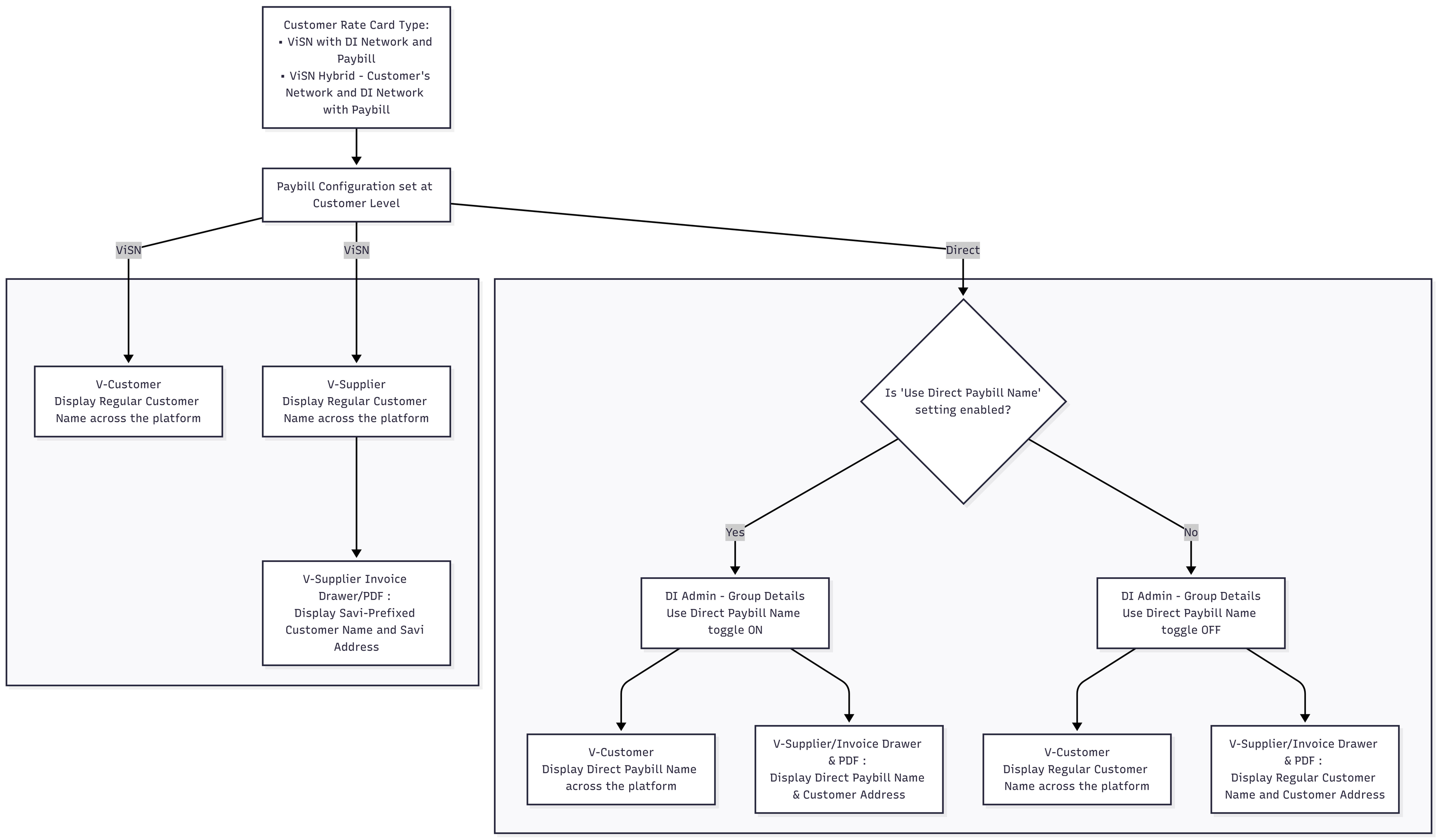
It applies when the customer's rate card type is one of the following:
- ViSN with DI Network and Paybill
- ViSN Hybrid - Customer's Network and DI Network with Paybill
Names and addresses are checked in three places:
- V-Customer view
- V-Supplier view
- Invoice Drawer and Invoice PDF
2. Key Concepts
| Term | Meaning |
|---|---|
| Lease Company | The main customer that owns the vehicles and rate card. In this setup, it is Journey Lease company with Savi. |
| Sub-Customer | A customer linked under the Lease Company. A vehicle can belong to a Sub-Customer or directly to the Lease Company. |
| Paybill configuration | Defines how the customer is billed. It can be set at Customer or Sub-Customer level and can be Direct or ViSN. |
| Direct Paybill | A Paybill type where the displayed name depends on whether Use Direct Paybill Name is enabled. |
| ViSN Paybill | A Paybill type where the Regular Customer Name is displayed. In the V-Supplier Invoice Drawer/PDF, the SAVi-prefixed customer name and SAVi address are displayed. |
| Use Direct Paybill Name | A setting in DI Admin > Group Details. When on, the Direct Paybill Name is displayed; when off, the Regular Customer Name is displayed. |
| Regular Customer Name | The customer's normal name saved in the system. |
| Direct Paybill Name | An alternative name used for Direct Paybill customers when the setting is enabled. In this setup: Journey Lease company. |
| Group | The supplier organization, such as Savi Group 1, that manages suppliers and the Paybill name setting. |
| V-Customer / V-Supplier | The areas where customer names and addresses are displayed. V-Supplier also includes the Invoice Drawer and Invoice PDF. |
3. Test Environment
3.1 Lease Configuration
| Setting | Value |
|---|---|
| Environment URL | https://visn-develop-branch.web.app/ |
| Lease Company Name | Journey Lease company with Savi |
| Direct Paybill Name | Journey Lease company |
| Rate card type enabled | ViSN Hybrid - Customer's Network and DI Network with Paybill |
| Group | Savi Group 1 |
| Supplier | SaviGroup1Supplier2 |
| Sub-Customers | Mobility Trader, ViSN Trader |
3.2 Credentials
| Role | Name | Credential |
|---|---|---|
| Lease user | Journey Lease company with Savi | journey+lease@digitalinnk.com |
| Group user | Savi Group1 | savig1@digitalinnk.com |
| Supplier user | SaviGroup1Supplier2 | savi.g1s2@digitalinnk.com |
4. Paybill Display Logic
4.1 Which Configuration Applies?
- If the vehicle belongs to a Sub-Customer with its own Paybill configuration, the Sub-Customer-level configuration applies (Appendix A).
- If the vehicle is linked directly to the Customer, or the Sub-Customer has no configuration, the Customer-level configuration applies (Appendix B).
4.2 What Is Displayed?
- ViSN: V-Customer and V-Supplier screens show the Regular Customer Name. The Invoice Drawer/PDF shows the SAVi-prefixed customer name and SAVi address.
- Direct, toggle ON: V-Customer shows the Direct Paybill Name.
- Direct, toggle OFF: V-Customer shows the Regular Customer Name.
- Direct, all cases: The Invoice Drawer/PDF shows the customer address. The name shown on V-Supplier depends on whether configuration is at Customer or Sub-Customer level, as shown in the matrix below.
4.3 Summary Matrix
Use this matrix as the expected result for each test.
| Configuration level | Paybill type | Toggle | V-Customer shows | V-Supplier screens show | Invoice Drawer / PDF shows |
|---|---|---|---|---|---|
| Sub-Customer | ViSN | N/A | Regular Customer Name | Regular Customer Name | SAVi-prefixed Customer Name and SAVi Address |
| Sub-Customer | Direct | ON | Direct Paybill Name | Sub-Customer Name | Sub-Customer Name and Customer Address |
| Sub-Customer | Direct | OFF | Regular Customer Name | Sub-Customer Name | Sub-Customer Name and Customer Address |
| Customer | ViSN | N/A | Regular Customer Name | Regular Customer Name | SAVi-prefixed Customer Name and SAVi Address |
| Customer | Direct | ON | Direct Paybill Name | Direct Paybill Name | Direct Paybill Name and Customer Address |
| Customer | Direct | OFF | Regular Customer Name | Regular Customer Name | Regular Customer Name and Customer Address |
5. How to Test
Follow these steps for each scenario in Section 6. Each scenario specifies the VRM, toggle state, Paybill configuration, and expected result.
Before You Start
- Open the environment URL in Section 3.1.
- Have the Group user, Lease user, and Supplier user logins from Section 3.2 ready.
- Select a scenario in Section 6 and note its VRM, toggle state, and expected result.
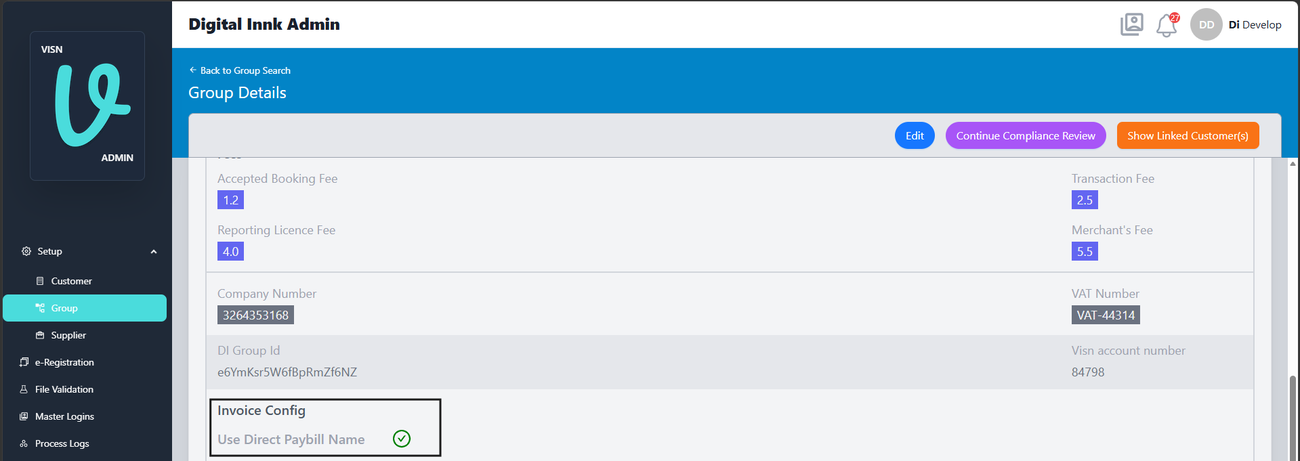
Step 1: Check the Toggle (Group User)
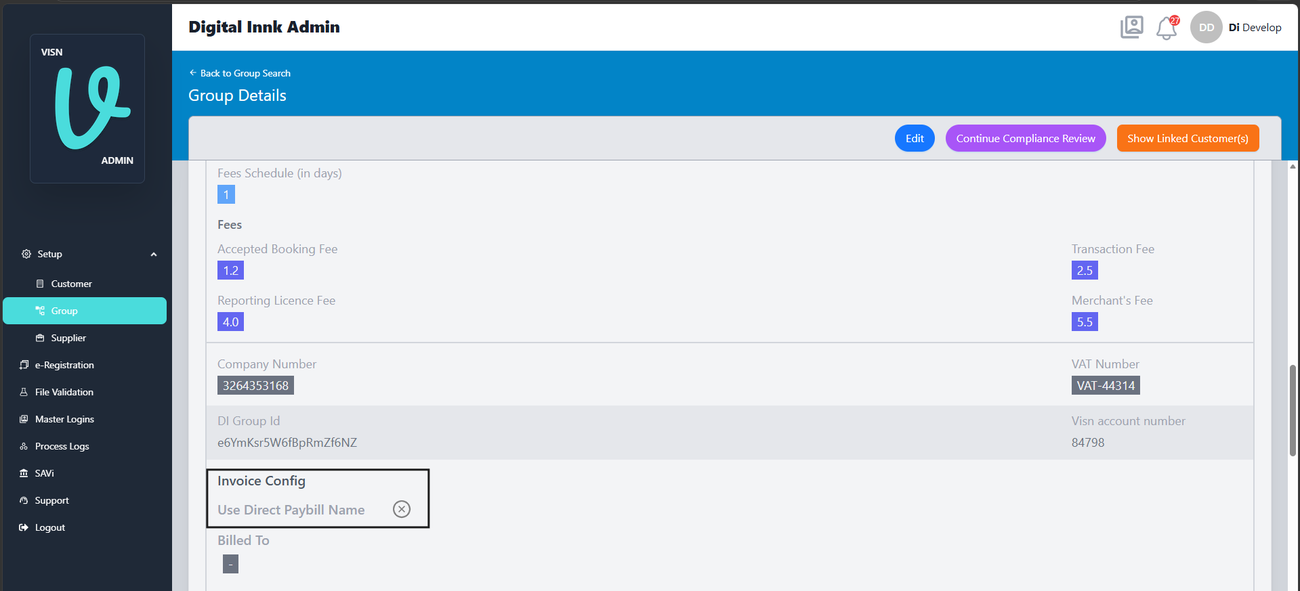
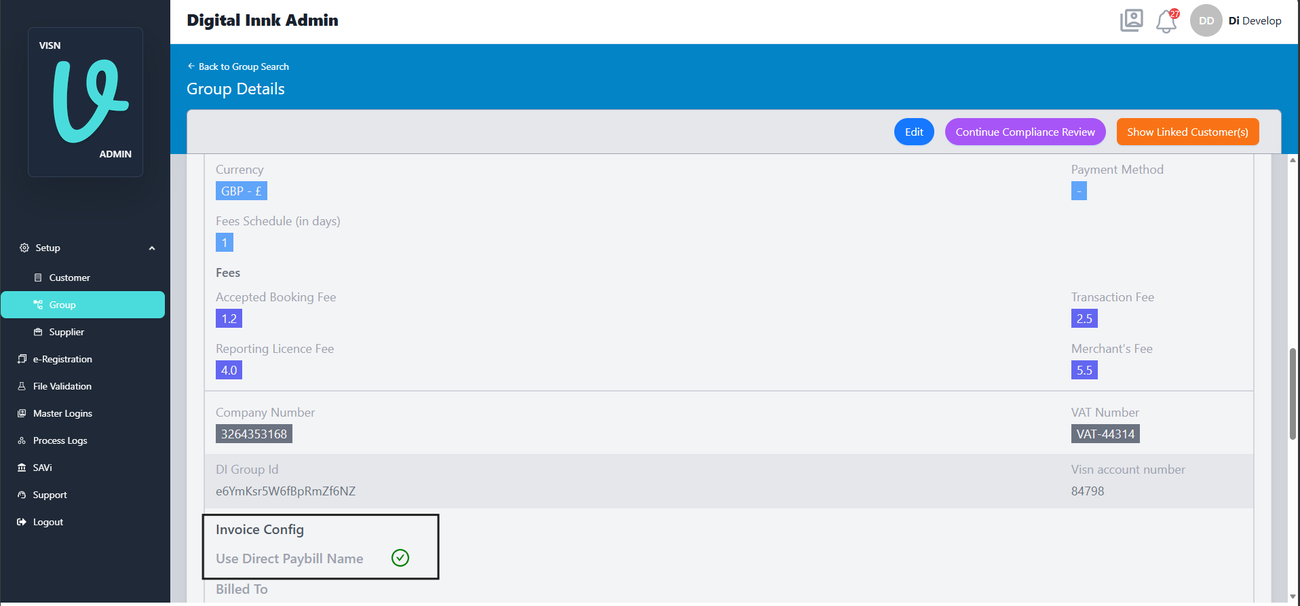
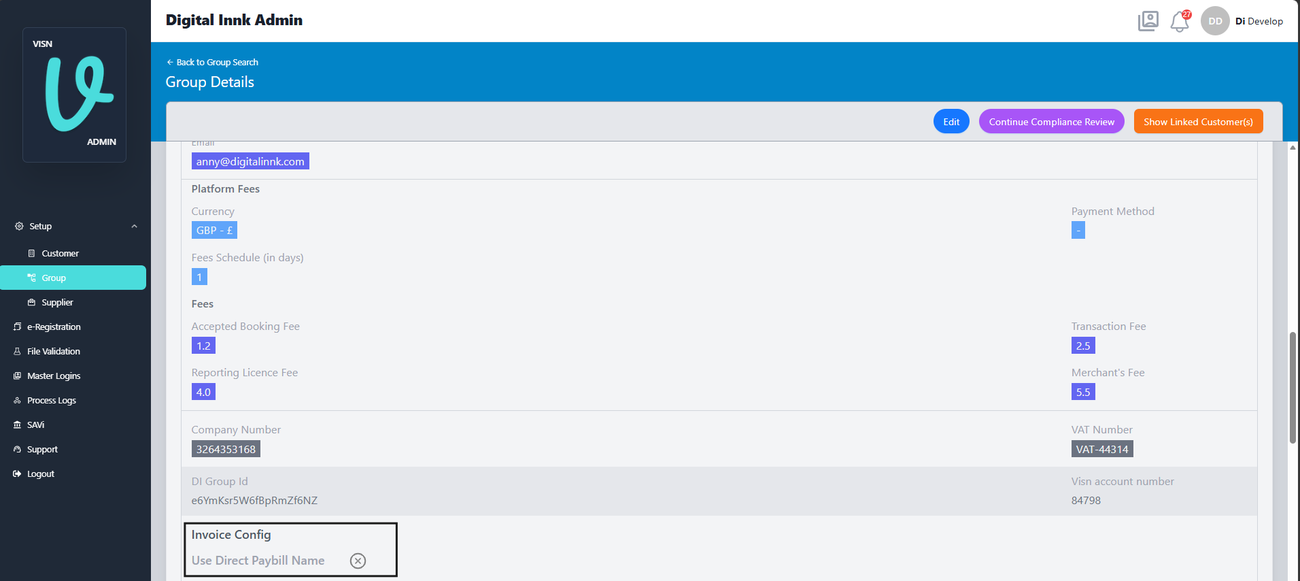
Log in to DI Admin as the Group user. Go to Setup > Group, open Savi Group 1, and scroll to Invoice Config. Check Use Direct Paybill Name. A green tick means ON; a cross means OFF. Change it if the selected scenario requires a different state.
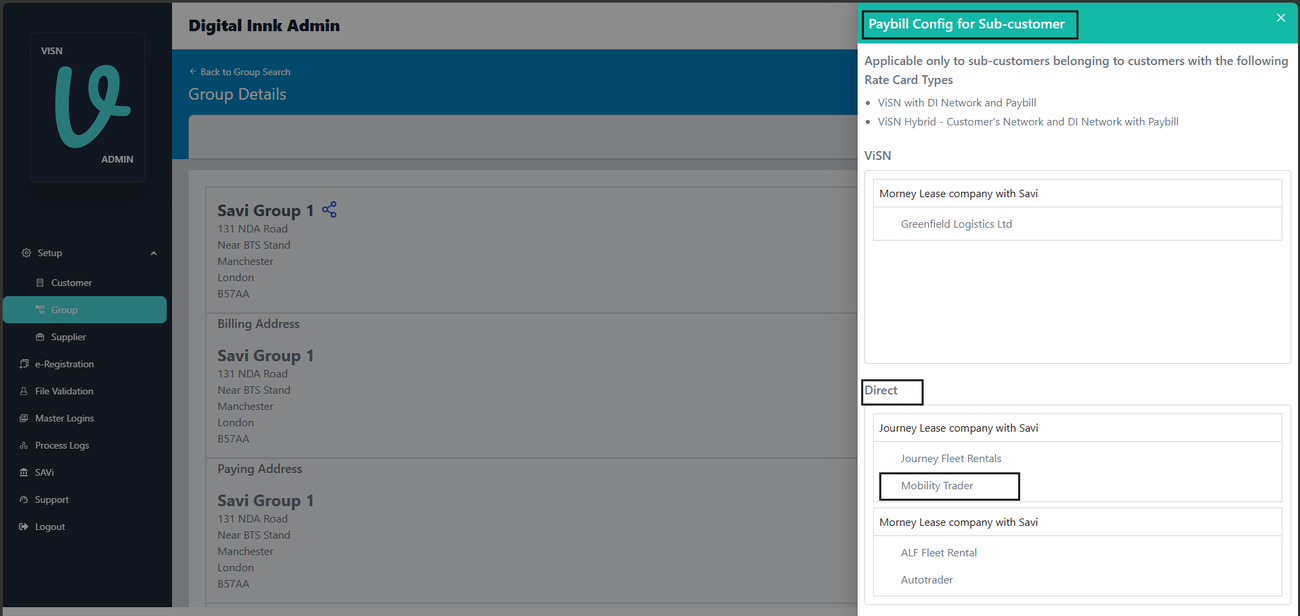
Step 2: Check Paybill Configuration (Group User)
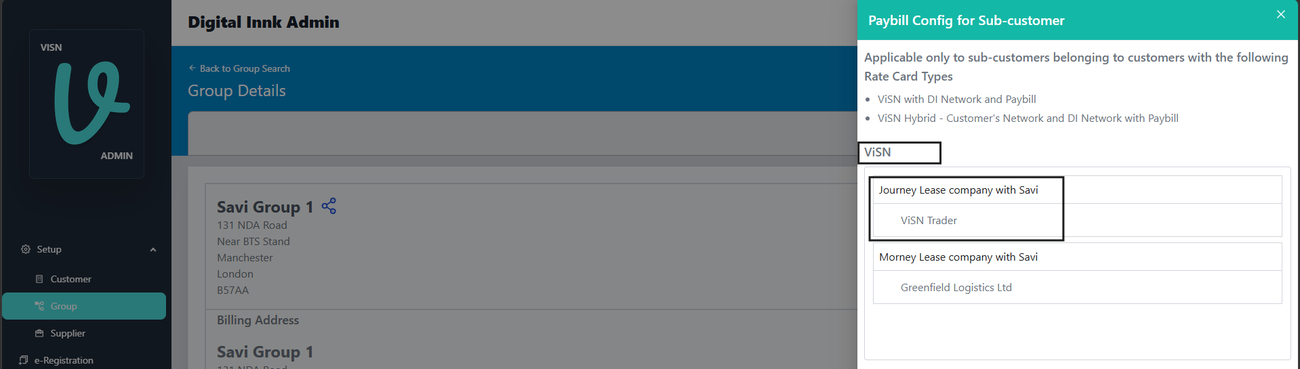
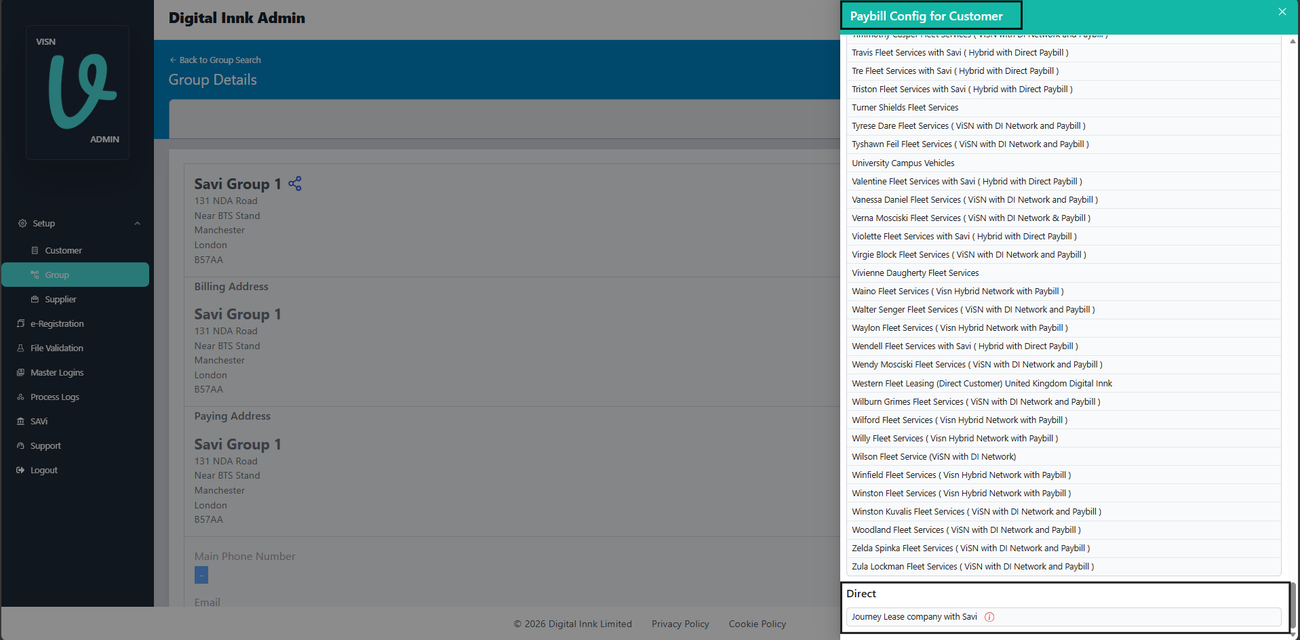
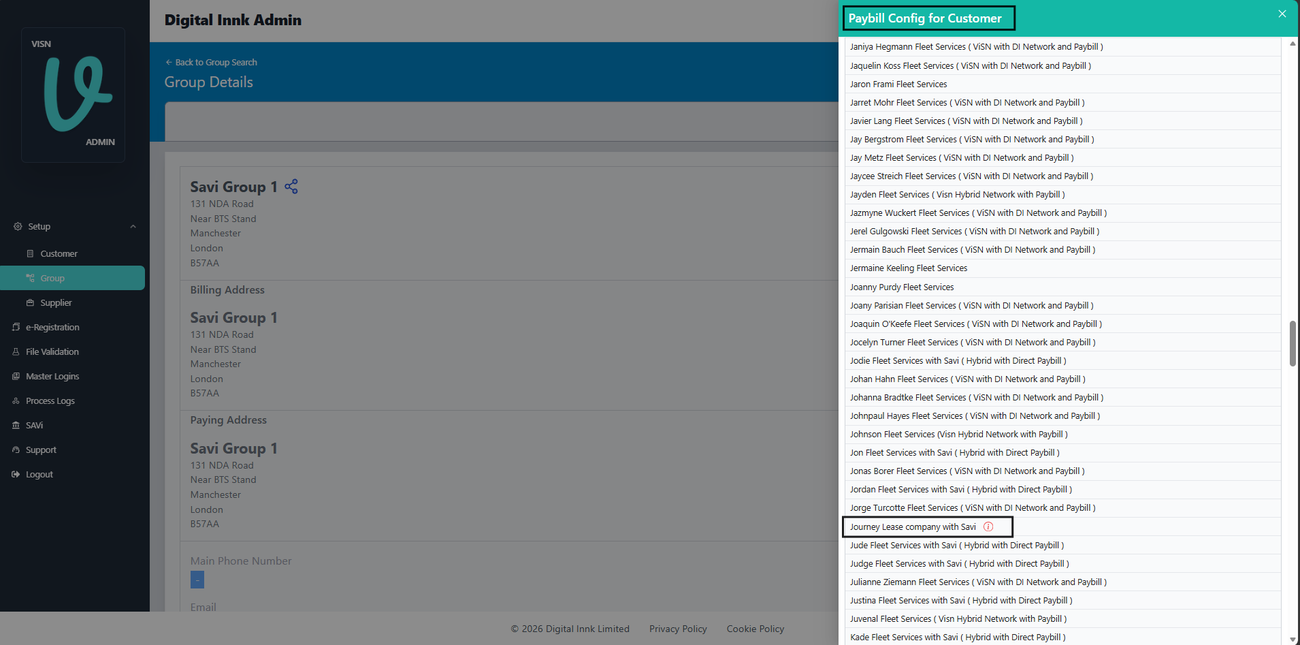
On the same Group Details page, open the Paybill Configuration. Confirm the Customer or Sub-Customer used in the scenario is listed under the expected type: ViSN or Direct.
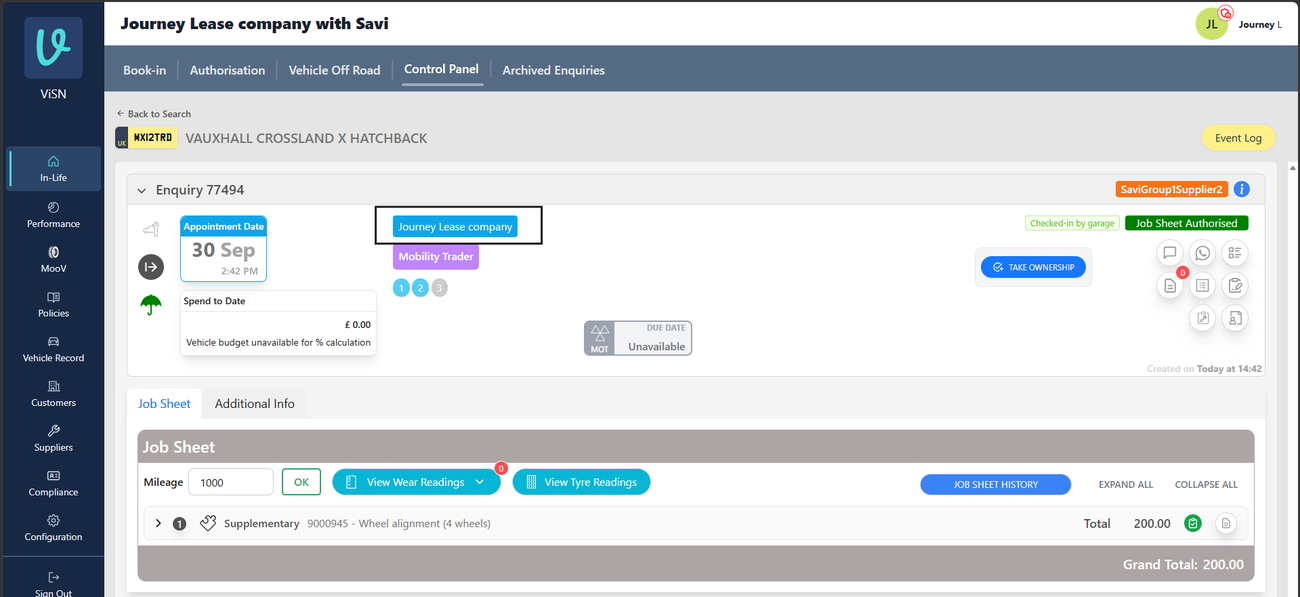
Step 3: Check V-Customer (Lease User)
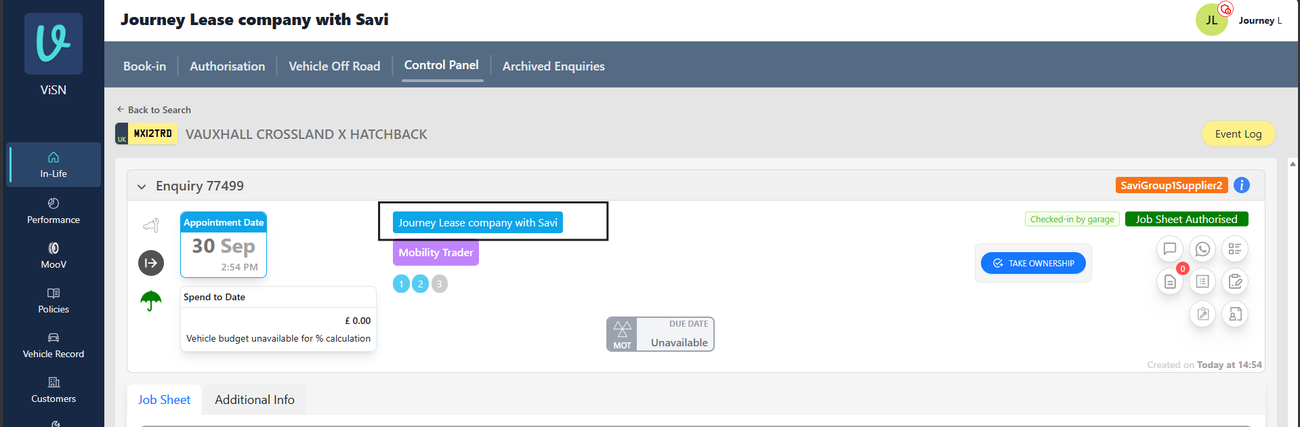
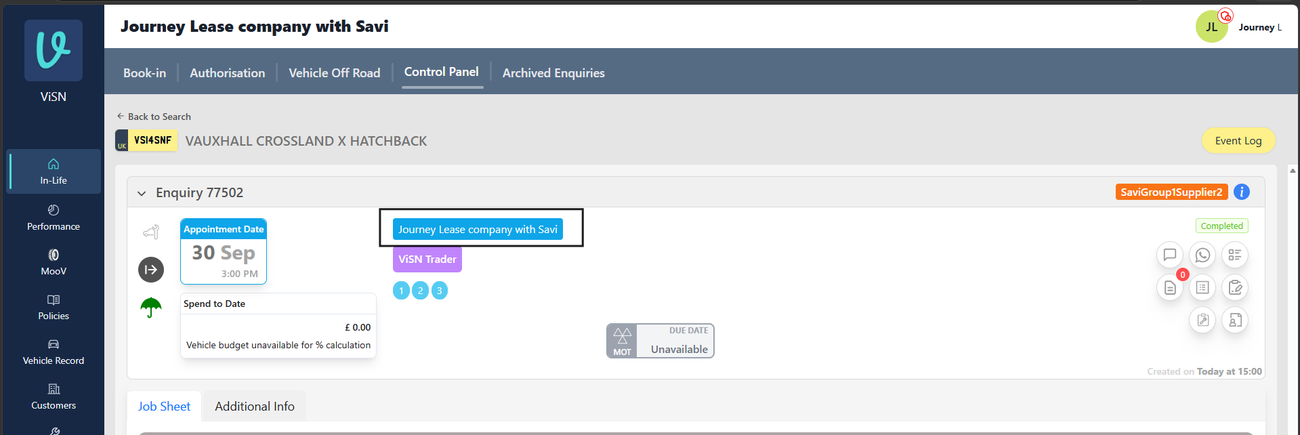
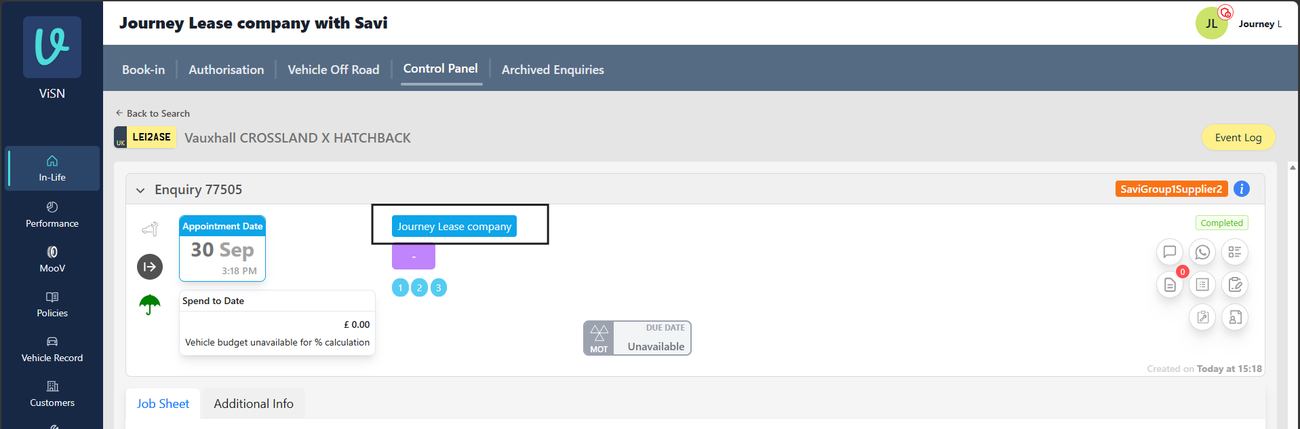
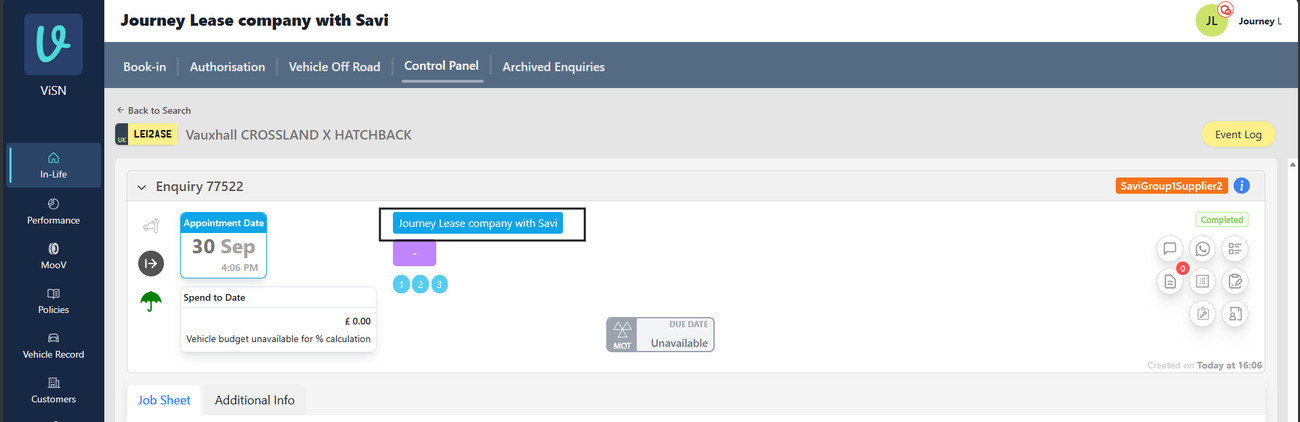
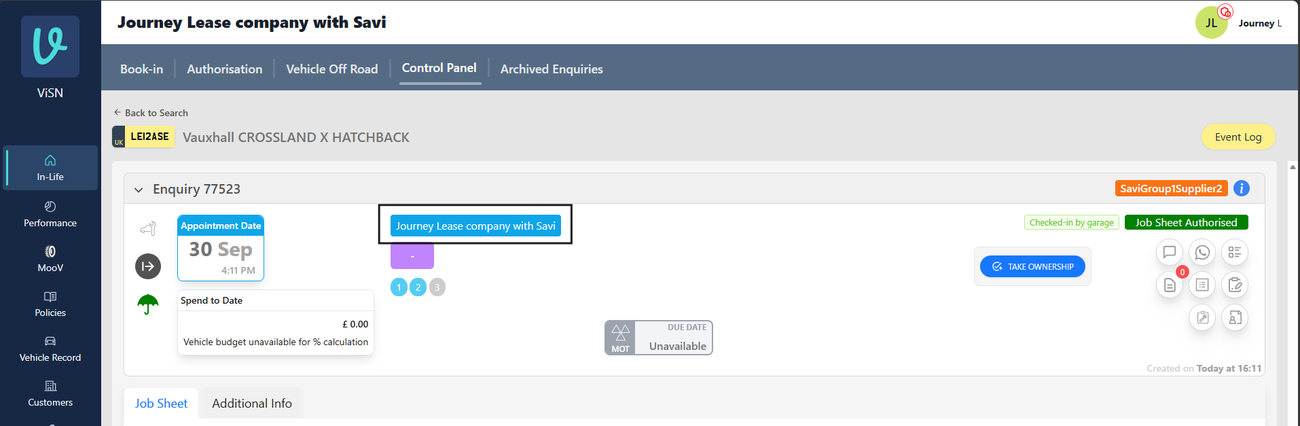
Log in as the Lease user, search for the scenario VRM, and open the enquiry in the Control Panel. Record the customer name shown on the enquiry.
Step 4: Check V-Supplier (Supplier User)
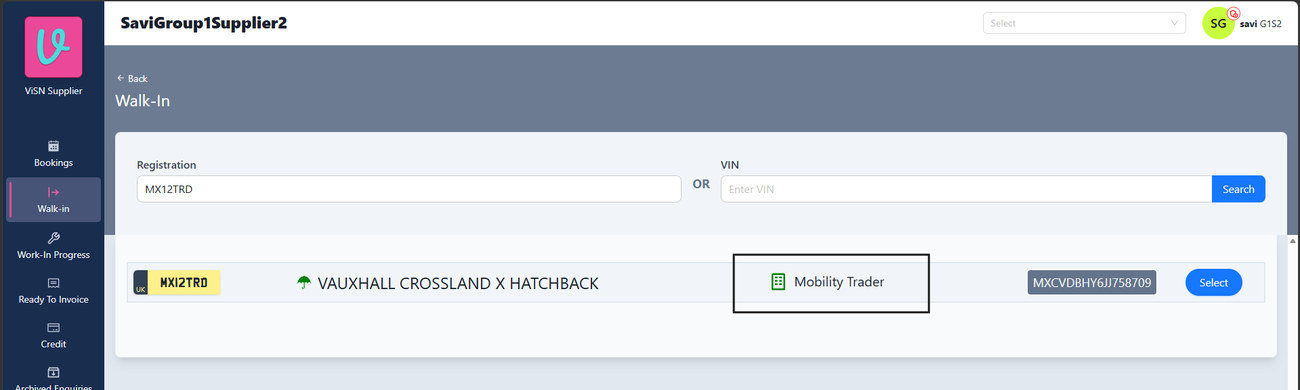
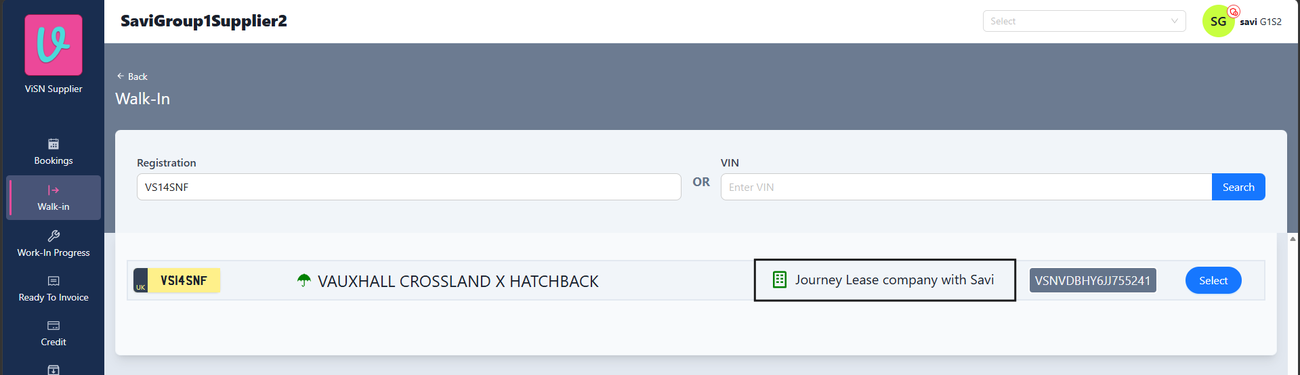
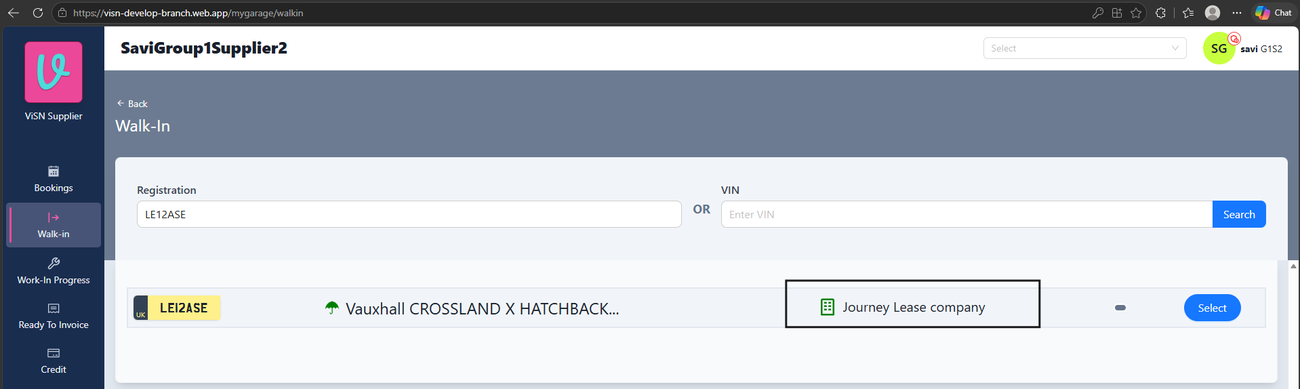
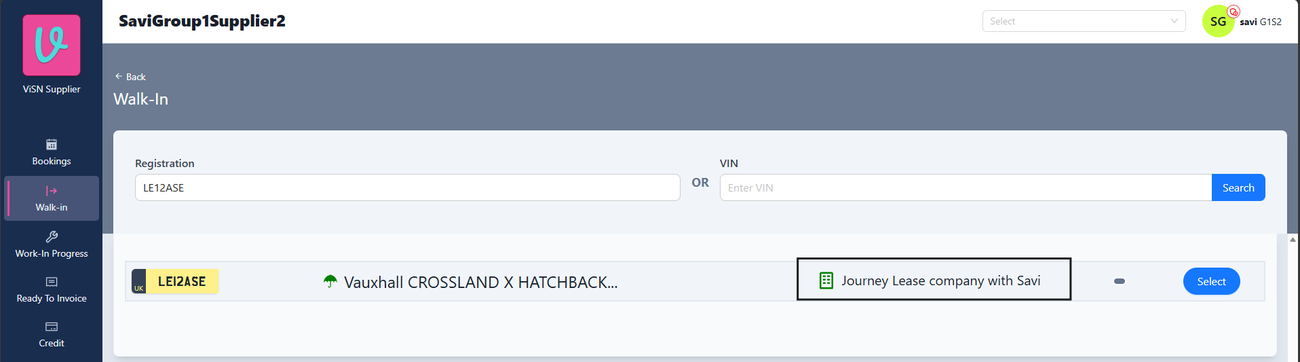
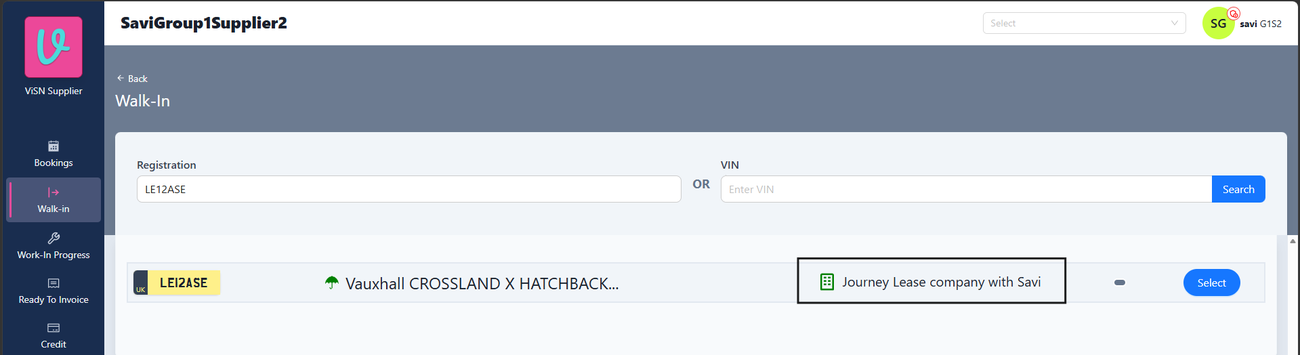
Log in as the Supplier user (SaviGroup1Supplier2). Go to Walk-in, enter the VRM, and click Search. Record the customer name shown in the search result.
Step 5: Check the Invoice Drawer / PDF (Supplier User)
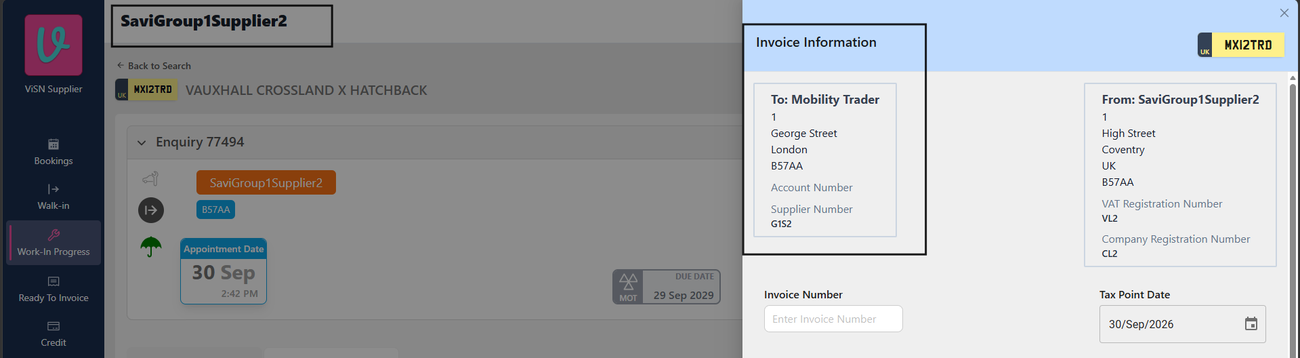
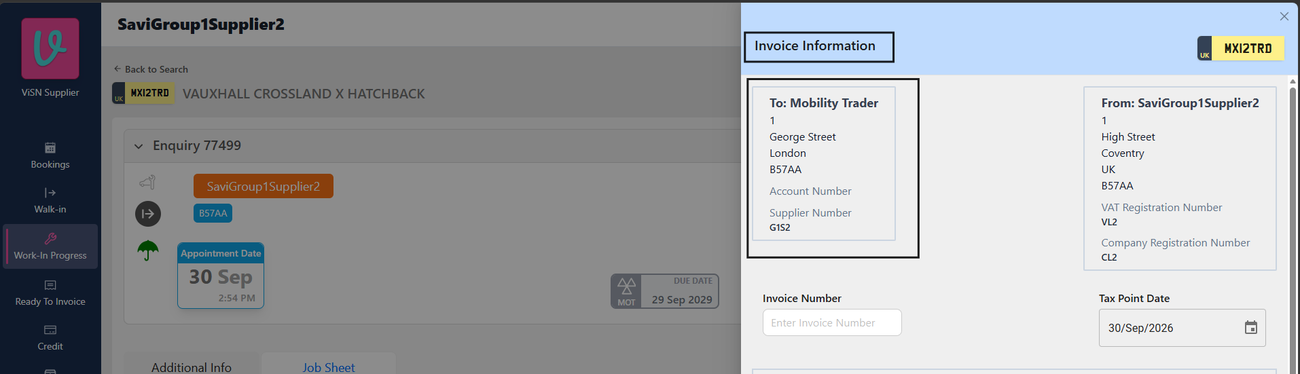
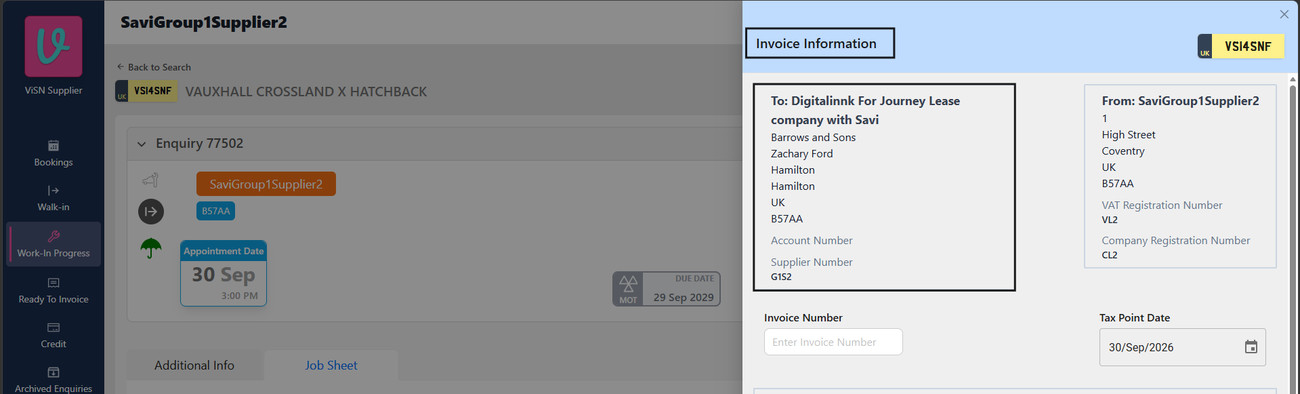
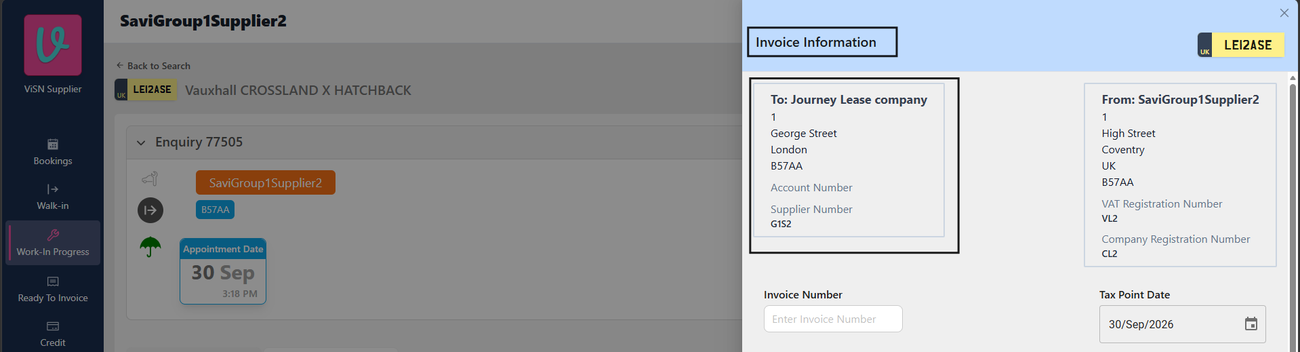
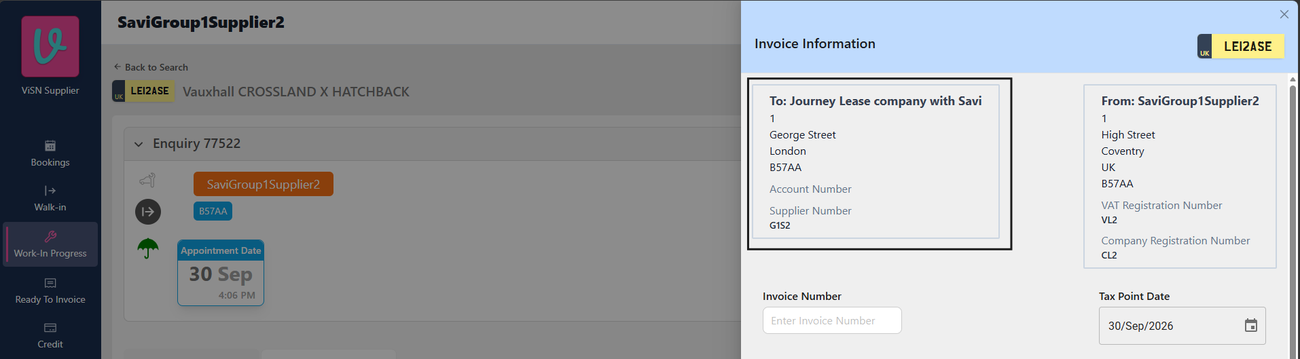
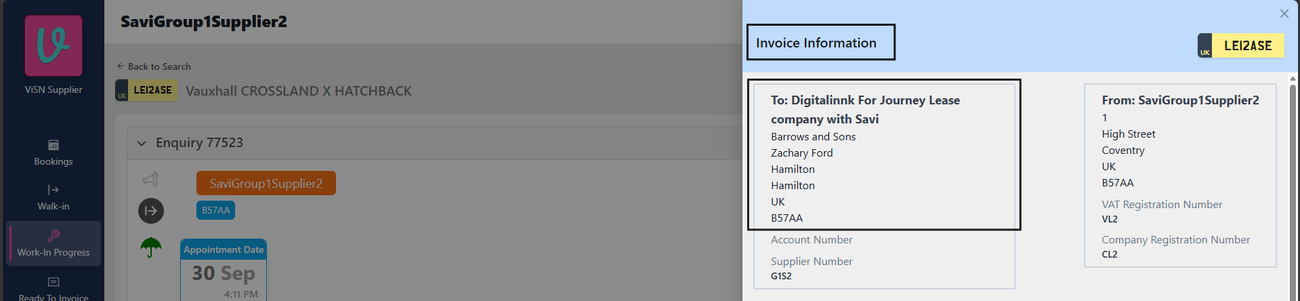
As the Supplier user, open the enquiry from Work-in-Progress and open the invoice drawer. Read the name and address in the To: block of Invoice Information. The invoice PDF shows the same details.
Step 6: Compare with the Expected Result
Compare the results from Steps 3 to 5 with the scenario in Section 6 or the matrix in Section 4.3. The scenario passes when all three places match. If any result differs, capture a screenshot of each screen and report it.
6. Test Scenarios
| Sr. No. | VRM | Paybill Configuration | Use Direct Paybill Toggle | Detail |
|---|---|---|---|---|
| 1 | MX12TRD | Sub-Customer, Direct configuration | ON | Section 6.1 |
| 2 | MX12TRD | Sub-Customer, Direct configuration | OFF | Section 6.2 |
| 3 | VS14SNF | Sub-Customer, ViSN configuration | N/A | Section 6.3 |
| 4 | LE12ASE | Customer, Direct configuration | ON | Section 6.4 |
| 5 | LE12ASE | Customer, Direct configuration | OFF | Section 6.5 |
| 6 | LE12ASE | Customer, ViSN configuration | N/A | Section 6.6 |
| 7 | - | Sub-Customer vehicle with no Sub-Customer-level configuration (fallback) | As per Customer configuration | Section 6.7 |
6.1 Sub-Customer Vehicle, Direct Configuration, Toggle ON
| Setting | Expected value |
|---|---|
| Vehicle (VRM) | MX12TRD |
| Paybill Configuration | Sub-Customer, Direct configuration |
| Toggle | ON |
| V-Customer | Direct Paybill Name |
| V-Supplier and Invoice Drawer/PDF | Sub-Customer Name and Customer Address |
Setup: Use Direct Paybill Toggle Setting
Setup: Paybill configuration
V-Customer
V-Supplier
Invoice Drawer
6.2 Sub-Customer Vehicle, Direct Configuration, Toggle OFF
| Setting | Expected value |
|---|---|
| Vehicle (VRM) | MX12TRD |
| Paybill Configuration | Sub-Customer, Direct configuration |
| Toggle | OFF |
| V-Customer | Regular Customer Name |
| V-Supplier and Invoice Drawer/PDF | Sub-Customer Name and Customer Address |
Setup: Use Direct Paybill Toggle Setting
Setup: Paybill configuration
V-Customer
V-Supplier
Invoice Drawer
6.3 Sub-Customer Vehicle, ViSN Configuration
| Setting | Expected value |
|---|---|
| Vehicle (VRM) | VS14SNF |
| Paybill Configuration | Sub-Customer, ViSN configuration |
| Toggle | N/A |
| V-Customer | Regular Customer Name |
| V-Supplier | Regular Customer Name |
| Invoice Drawer/PDF | SAVi-prefixed name and SAVi Address |
Setup: Paybill configuration
V-Customer
V-Supplier
Invoice Drawer
6.4 Vehicle Linked Directly, Customer Direct, Toggle ON
| Setting | Expected value |
|---|---|
| Vehicle (VRM) | LE12ASE |
| Paybill Configuration | Customer, Direct Configuration |
| Toggle | ON |
| V-Customer | Direct Paybill Name |
| V-Supplier and Invoice Drawer/PDF | Direct Paybill Name and Customer Address |
Setup: Use Direct Paybill Toggle Setting
Setup: Paybill configuration
V-Customer
V-Supplier
Invoice Drawer
6.5 Vehicle Linked Directly, Customer Direct, Toggle OFF
| Setting | Expected value |
|---|---|
| Vehicle (VRM) | LE12ASE |
| Paybill Configuration | Customer, Direct Configuration |
| Toggle | OFF |
| V-Customer | Regular Customer Name |
| V-Supplier and Invoice Drawer/PDF | Regular Customer Name and Customer Address |
Setup: Use Direct Paybill Toggle Setting
Setup: Paybill configuration
V-Customer
V-Supplier
Invoice Drawer
6.6 Vehicle Linked Directly, Customer ViSN
| Setting | Expected value |
|---|---|
| Vehicle (VRM) | LE12ASE |
| Paybill Configuration | Customer, ViSN Configuration |
| Toggle | N/A |
| V-Customer | Regular Customer Name |
| V-Supplier | Regular Customer Name |
| Invoice Drawer/PDF | SAVi-prefixed name and SAVi Address |
Setup: Paybill configuration
V-Customer
V-Supplier
Invoice Drawer
6.7 Fallback: Sub-Customer Vehicle Without Sub-Customer-Level Configuration
| Setting | Expected value |
|---|---|
| Vehicle | Sub-Customer vehicle with no Paybill configuration at Sub-Customer level |
| Toggle | As set by the Customer configuration |
| V-Customer | Direct Paybill Name or Regular Customer Name |
| V-Supplier | Direct Paybill Name or Regular Customer Name |
| Invoice Drawer/PDF | Direct Paybill Name and Customer Address, Regular Customer Name and Customer Address, or SAVi-prefixed Customer Name and SAVi Address |
With no configuration on the Sub-Customer, the result follows the Customer-level configuration. Use Appendix B and the Customer rows of the matrix in Section 4.3. Screenshots are covered by scenarios 6.4 to 6.6.
Appendix A: Paybill Configured at Sub-Customer Level
Applies when a Paybill configuration exists on the Sub-Customer.
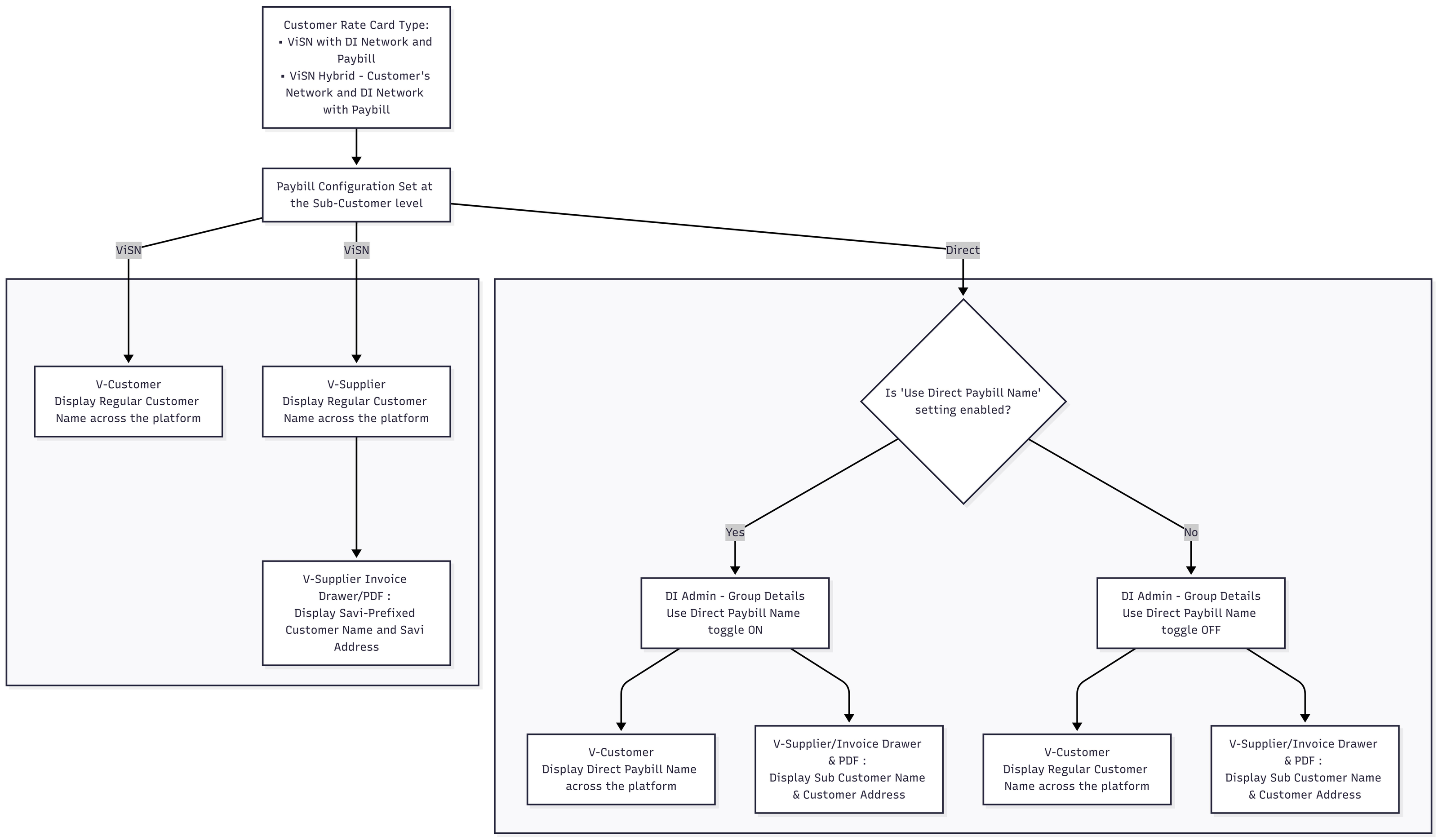
Appendix B: Paybill Configured at Customer Level
Applies to vehicles linked directly to the Customer, or when the Sub-Customer has no configuration (fallback).